
Set up the TextAI keyboard
Short answer: Settings → General → Keyboard → Keyboards → Add New Keyboard → TextAI, then tap TextAI and turn on Allow Full Access. It takes about a minute and you only do it once.
- Install and open TextAI once. The keyboard ships inside the app, so it only appears in Settings after the app is installed.
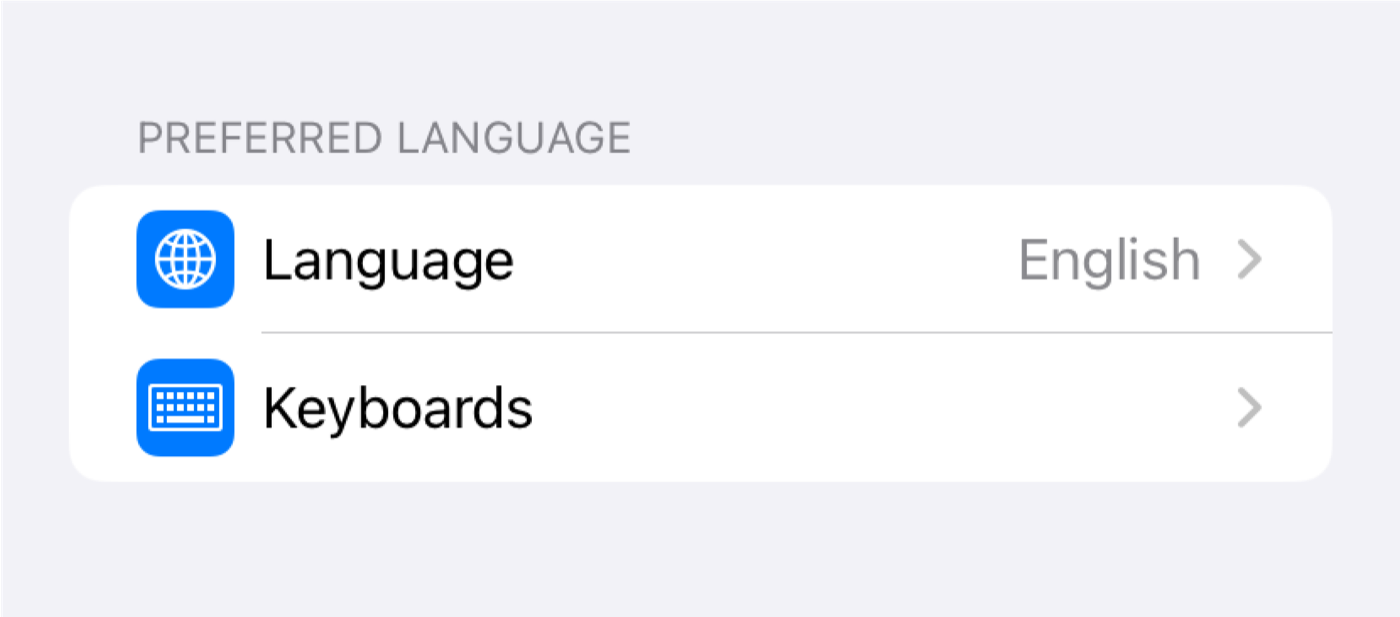
- Add the keyboard. Open the Settings app, then General → Keyboard → Keyboards → Add New Keyboard. Under Third-Party Keyboards, choose TextAI.
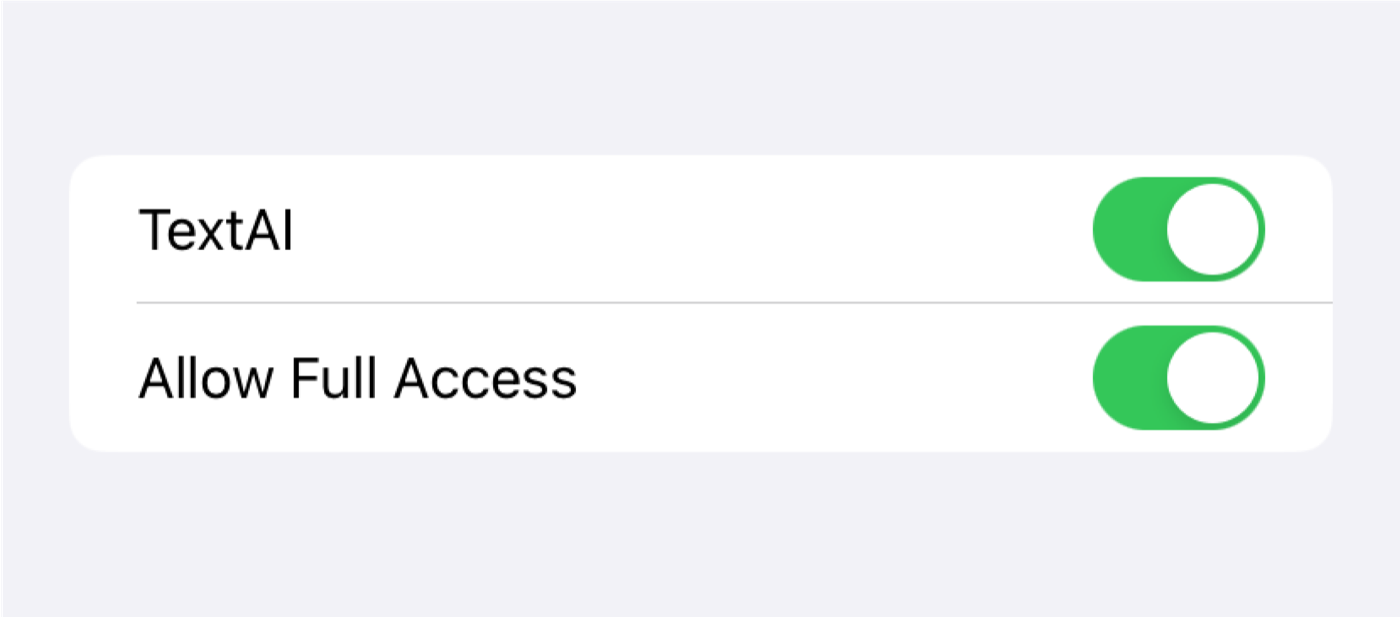
- Allow Full Access. Back in the Keyboards list, tap TextAI and turn on Allow Full Access. iOS requires this for any keyboard that connects to the internet, and TextAI needs it to send your text to the AI.
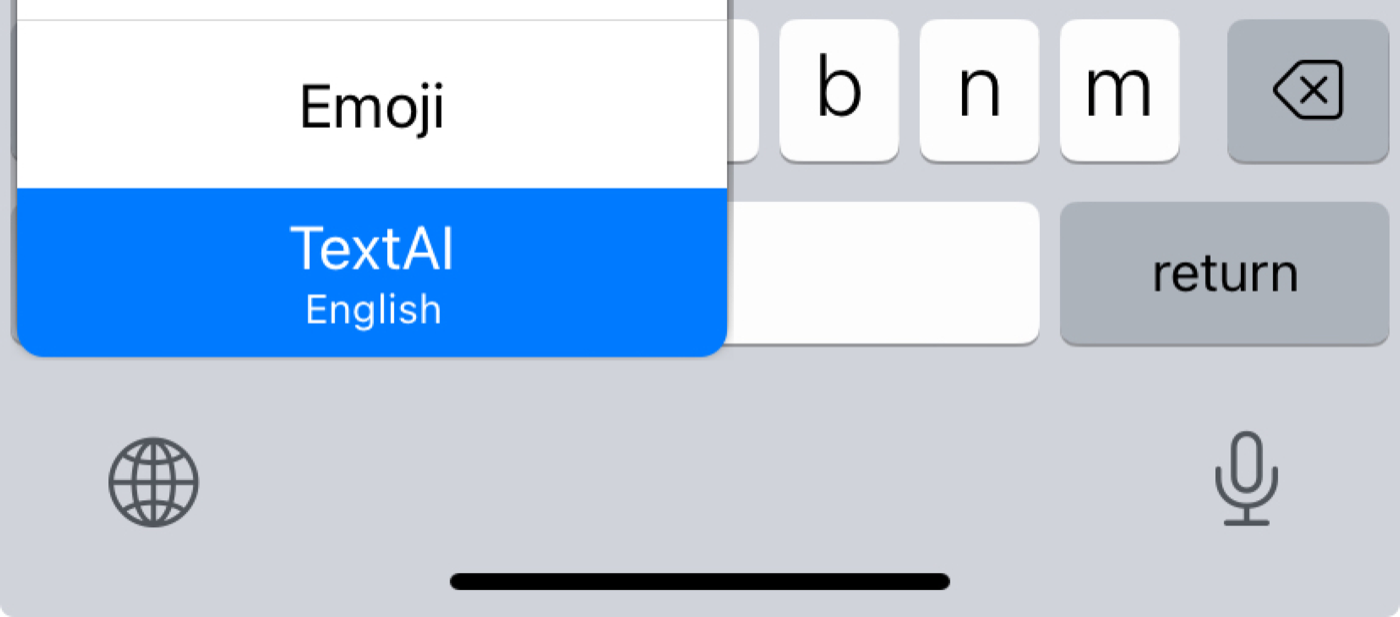
- Switch to it. In any app, long-press the globe (🌐) key below the keyboard and pick TextAI. A single tap on the globe cycles through your keyboards.
The app also walks you through these steps the first time you open it, with a shortcut straight into Settings.
Use the keyboard in any app
The TextAI keyboard works wherever iOS lets you type with a third-party keyboard: iMessage, WhatsApp, Instagram and TikTok DMs, Gmail, Outlook, Slack, Notes, LinkedIn and dating apps like Hinge and Tinder.
- Switch to the TextAI keyboard.
- Select the text you want to work on, or paste it in. For a reply, paste the message you received.
- Tap a tool. Add a short instruction if you want, for example "keep it casual" or "say no politely".
- Insert the result into the text field, or regenerate for another version.
These 28 tools are available from the keyboard:
- Correct grammar
- Improve writing
- Make it shorter
- Expand
- Change tone
- Simplify sentences
- Continue writing
- Paraphrase
- Find a synonym
- Make punchier
- Make formal
- Detect tone
- Write a text
- Improve my text
- Reply to a text
- Rate my message
- Icebreaker questions
- Red or Green Flag
- Write an email
- Improve my email
- Reply to an email
- Instagram caption
- TikTok caption
- Key Takeaways
- Summarize
- Fun facts
- Give advice
- Answer
The other tools are in the app itself. You can reach all 228 from the app's search.
Reply to a text from a screenshot
A screenshot gives TextAI the whole conversation instead of a single message, which is usually the difference between a generic reply and one that fits. There are two ways to do it:
- From the share sheet. Take a screenshot, tap the preview, tap Share and choose Reply with TextAI. The app opens with the screenshot already attached and drafts a reply.
- Inside the app. Open the Reply to a conversation tool and pick the screenshot from your photos.
Add a line about what you want to say back. "I want to say yes but not this week" gets a much better reply than no instruction at all.
Before you reply, the reply tools sit next to a set of tools that read a message for you: Decode a message, Vibe check, Is this flirting?, Red or green flag and Am I overthinking?
Pick the right tool
Each of the 228 tools is tuned for one job, so picking the closest one matters more than the wording of your request.
| You want to… | Use |
|---|---|
| Fix mistakes without changing your voice | Correct grammar (Proofread on the keyboard) |
| Say the same thing in different words | Paraphrase |
| Keep the message, change how it lands | Change tone, Make formal, Make sassy |
| Make AI-written text sound like a person | Humanize AI text |
| Answer a message | Reply to a text, Reply to a conversation (screenshot) |
| Start or rescue a conversation | Write a pick-up line, Add rizz, Icebreaker questions, Fix a dry text |
| Write an email from a brief | Write an email, Reply to an email, Follow-up email |
| Read something long quickly | Summarize, Key Takeaways |
| Caption a post | Instagram caption, TikTok caption, Write TikTok hook |
| Plan an essay or apply for a job | Outline an essay, Write a cover letter |
Get better results
- Give it both halves. The text to work on, and one line about what you want. Without the second half you get something safe and bland.
- Describe the tone in your own words. "Dry, no exclamation marks" or "how I actually text, lowercase" works better than picking "casual".
- Use Styles and Audiences. Many tools let you choose a style and who the message is for. Your Clones show up there too.
- Regenerate instead of rewriting. If the first version is close, ask again or add one correction like "shorter" or "less formal".
- Choose the output language. TextAI can write in the language you pick in the app, independent of the language of your input.
The Assistant: ask anything
The Assistant tab is a chat for everything the single-purpose tools do not cover. Type a question, or hold the microphone and say it. Attach up to four photos, screenshots or PDFs and it reads them.
Answers come back as cards instead of a wall of text:
- Draft: a message or an email with its subject line. Under it, one tap makes it Shorter, Friendlier or Formal.
- Options: three alternatives when there is more than one good answer.
- List, checklist and next steps: for ideas, plans and to-dos.
- Summary and table: for long text and comparisons.
- Before and after: when you ask it to fix or rewrite something.
- Translation: with the original one tap away.
Insert sends a card to the TextAI keyboard so you can paste it into any app; you can also save it to your history or share it. The Tools chip above the message box runs any text tool on what you are about to send (leave it on Auto to let the Assistant choose), and Choose a persona answers in the voice of one of your Clones. Screenshots shared with Reply with TextAI open here with the image already attached.
Clones
A Clone is a saved persona with its own background and writing style. Clone yourself so drafts sound like you, or clone someone else to understand how they talk. Add example texts and screenshots to make a Clone more accurate. There are 20 ready-made templates to start from.
- As a style: write a message the way that person would.
- As an audience: tailor a message for that person.
- As a chat: talk to the Clone directly.
Scan text with the camera
Smart Scan reads text from a photo: a page, a worksheet, a sign, a menu or a screenshot. TextAI shows what it found and suggests what to do with it, so you can summarize it, rewrite it, answer it or reply to it. Most tools also accept a photo as input directly, and Image to Text simply extracts the text.
Siri and Shortcuts
TextAI adds two actions to Siri and the Shortcuts app:
- Ask TextAI: say "Ask TextAI" or "Write with TextAI" and tell it what to write.
- Draft a reply: say "Draft a reply with TextAI" or "Reply with TextAI" and give it the message you are replying to.
Customize the app
- App icon: Settings in the app offers a set of alternative icons, from the original black-and-pink ring to light, galaxy, retro and more.
- Home layout: reorder the sections on the home screen or hide the ones you do not use, and reset to the default at any time.
- Output language: pick the language TextAI writes in, separately from the language of your input.
- History: everything you generate is kept on your iPhone and can be reopened, copied or deleted.
Subscription
TextAI is free to download and includes free generations so you can try the tools. A Pro subscription unlocks unlimited use of every tool and the keyboard. Prices are shown on the App Store and in the app before you buy. Payments are handled by Apple.
- Restore a purchase: open the paywall in the app and tap Restore, signed in with the Apple ID you bought with.
- Cancel: Settings → your name → Subscriptions → TextAI → Cancel Subscription. You keep Pro until the end of the period you paid for.
- Refunds: are handled by Apple at reportaproblem.apple.com.
Privacy and Full Access
Your writing history is stored on your iPhone, not on our servers. When you run a tool, the text (and any image) you submit is sent securely to OpenAI to generate the result. Allow Full Access is the iOS setting that lets a keyboard use the network at all; TextAI needs it to reach the AI. See the privacy policy for details.
Troubleshooting
- TextAI is not in the Add New Keyboard list
- Open the TextAI app once after installing, then check again. If it is still missing, restart the iPhone.
- The keyboard opens but tools do nothing
- Allow Full Access is probably off. Settings → General → Keyboard → Keyboards → TextAI → Allow Full Access.
- The keyboard does not appear in a particular field
- iOS always uses the system keyboard for password and some phone number fields, and some apps block third-party keyboards. That is an iOS rule, not a TextAI setting.
- I subscribed but still see the paywall
- Tap Restore on the paywall with the same Apple ID. If that does not help, email us with the date of purchase.
Still stuck? Email usetextai@gmail.com. We usually answer within 1 to 2 days.